> ## Documentation Index
> Fetch the complete documentation index at: https://help.tivero.app/llms.txt
> Use this file to discover all available pages before exploring further.
# Absence calendar
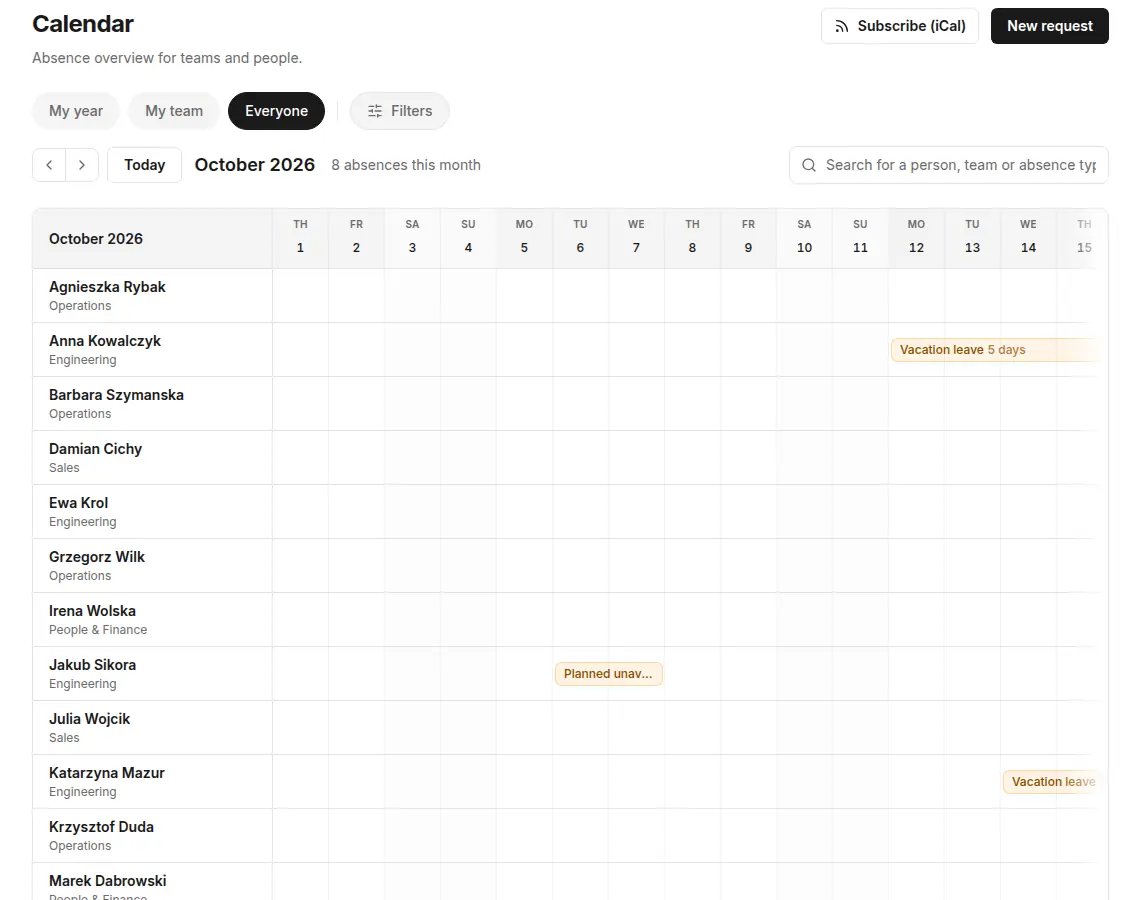
> See absences for yourself, your team or the whole organization, set visibility, and subscribe to the calendar in your calendar app.
**Who:** everyone. What you see depends on your role.
**Where:** the **Calendar** menu.
## Views
| View | What it shows | Who sees it |
| ------------ | --------------------------------- | ------------------------------------------- |
| **My year** | Your absences across the year. | everyone |
| **My team** | Your team's absences. | people who can see their team |
| **Everyone** | Absences across the organization. | roles with access to the whole organization |
**Legend:** **Approved**, **Pending**, **Public holiday**. Days off and public holidays don't count towards a request.
 ## Visibility of details
**Who sets it:** HR, Administrator, Owner — in **Settings → Calendar visibility**.
* **Show the absence type** — when off, coworkers see a generic "Absent" in the calendar instead of the type.
* **Private types always shown as "Absent"** — details of private types (for example L4) are visible only to the person, their manager and HR. This setting is required and can't be turned off.
## Subscribe to the calendar (iCal)
You can add absences to Google Calendar, Outlook or Apple Calendar as a read-only subscribed calendar.
In the **Calendar**, click **Subscribe (iCal)**.
Choose **My calendar**, **Team calendar** (Manager and above) or **Whole organization** (HR and above).
Click **Create my link** or **Create organization link** and copy the link.
In your calendar app, add a calendar from a URL (subscription) and paste the link.
The subscription shows who is absent. Private types (for example sick leave) appear as "Absent". The iCal subscription is available on the Start, Growth and Enterprise plans and during the trial.
Treat the link like a password — anyone who has it sees absences in the chosen scope. If the link leaks, revoke it and create a new one.
## Related articles
* [Outlook calendar (Microsoft 365)](/en/microsoft-365/outlook-calendar)
* [Absence types](/en/time-off/absence-types)
* [Plans and trial](/en/billing/plans-and-trial)
## Visibility of details
**Who sets it:** HR, Administrator, Owner — in **Settings → Calendar visibility**.
* **Show the absence type** — when off, coworkers see a generic "Absent" in the calendar instead of the type.
* **Private types always shown as "Absent"** — details of private types (for example L4) are visible only to the person, their manager and HR. This setting is required and can't be turned off.
## Subscribe to the calendar (iCal)
You can add absences to Google Calendar, Outlook or Apple Calendar as a read-only subscribed calendar.
In the **Calendar**, click **Subscribe (iCal)**.
Choose **My calendar**, **Team calendar** (Manager and above) or **Whole organization** (HR and above).
Click **Create my link** or **Create organization link** and copy the link.
In your calendar app, add a calendar from a URL (subscription) and paste the link.
The subscription shows who is absent. Private types (for example sick leave) appear as "Absent". The iCal subscription is available on the Start, Growth and Enterprise plans and during the trial.
Treat the link like a password — anyone who has it sees absences in the chosen scope. If the link leaks, revoke it and create a new one.
## Related articles
* [Outlook calendar (Microsoft 365)](/en/microsoft-365/outlook-calendar)
* [Absence types](/en/time-off/absence-types)
* [Plans and trial](/en/billing/plans-and-trial)