> ## Documentation Index
> Fetch the complete documentation index at: https://help.tivero.app/llms.txt
> Use this file to discover all available pages before exploring further.
# Connect Microsoft 365
> Connect Tivero to Microsoft 365 yourself, or hand the authorization off to your IT administrator.
**Who:** an Administrator or the Owner in Tivero, together with a Microsoft 365 administrator.
**Where:** the **Configuration → Integrations → Microsoft 365** menu.
## Connect yourself
Use this option if you're also a Microsoft 365 administrator in your organization.
Go to **Integrations** and open **Microsoft 365**.
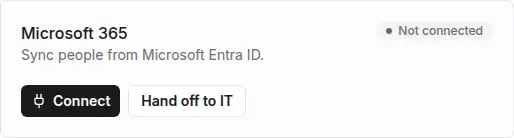 Click **Connect**. Sign in to Microsoft with an administrator account and accept the permissions.
When you're back in Tivero, the status changes to **Connected**.
## Hand off authorization to IT
Use this option if someone else holds Microsoft 365 administrator rights.
Click **Hand off to IT**. Optionally enter the **IT admin email** — we then email the link directly. Click **Generate link** or **Generate and send**.
If you didn't enter an address, copy the link with **Copy link** and share it with the administrator. The link expires in 72 hours.
The administrator opens the link, signs in to Microsoft and accepts the permissions. The status in Tivero changes to **Needs confirmation**.
Check that this is the right Microsoft 365 organization and click **Confirm and activate**. If it isn't your organization, click **Reject** — the integration is disconnected.
You can generate the link again with **Regenerate**, for example after it expires. Cancel the authorization request with **Cancel**.
## Connection statuses
| Status | What it means |
| ----------------------------------------------- | ------------------------------------------------------------- |
| **Not connected** | The integration isn't set up. |
| **Connecting…** / **Awaiting IT authorization** | Waiting for authorization in Microsoft. |
| **Needs confirmation** | Your IT admin authorized access — confirm the organization. |
| **Connected** | The integration is working. |
| **Needs reconnection** | Microsoft revoked or invalidated access. Click **Reconnect**. |
## What's next
Start with [people sync](/en/microsoft-365/directory-sync).
## Related articles
* [Microsoft 365 overview](/en/microsoft-365/overview)
* [Microsoft 365 issues](/en/troubleshooting/microsoft-365-issues)
Click **Connect**. Sign in to Microsoft with an administrator account and accept the permissions.
When you're back in Tivero, the status changes to **Connected**.
## Hand off authorization to IT
Use this option if someone else holds Microsoft 365 administrator rights.
Click **Hand off to IT**. Optionally enter the **IT admin email** — we then email the link directly. Click **Generate link** or **Generate and send**.
If you didn't enter an address, copy the link with **Copy link** and share it with the administrator. The link expires in 72 hours.
The administrator opens the link, signs in to Microsoft and accepts the permissions. The status in Tivero changes to **Needs confirmation**.
Check that this is the right Microsoft 365 organization and click **Confirm and activate**. If it isn't your organization, click **Reject** — the integration is disconnected.
You can generate the link again with **Regenerate**, for example after it expires. Cancel the authorization request with **Cancel**.
## Connection statuses
| Status | What it means |
| ----------------------------------------------- | ------------------------------------------------------------- |
| **Not connected** | The integration isn't set up. |
| **Connecting…** / **Awaiting IT authorization** | Waiting for authorization in Microsoft. |
| **Needs confirmation** | Your IT admin authorized access — confirm the organization. |
| **Connected** | The integration is working. |
| **Needs reconnection** | Microsoft revoked or invalidated access. Click **Reconnect**. |
## What's next
Start with [people sync](/en/microsoft-365/directory-sync).
## Related articles
* [Microsoft 365 overview](/en/microsoft-365/overview)
* [Microsoft 365 issues](/en/troubleshooting/microsoft-365-issues)