> ## Documentation Index
> Fetch the complete documentation index at: https://help.tivero.app/llms.txt
> Use this file to discover all available pages before exploring further.
# Add and invite people
> Add a person to the organization, give them a team, supervisor and policy, then send the invitation.
**Who:** HR, Administrator, Owner.
**Prerequisites:** at least one [absence policy](/en/time-off/absence-policies), if you want to assign it right away.
Adding a person and inviting them are two separate steps. First you create the person's profile, then you send the invitation when everything is ready.
## Add a person
Go to **People** and click **Add person**.
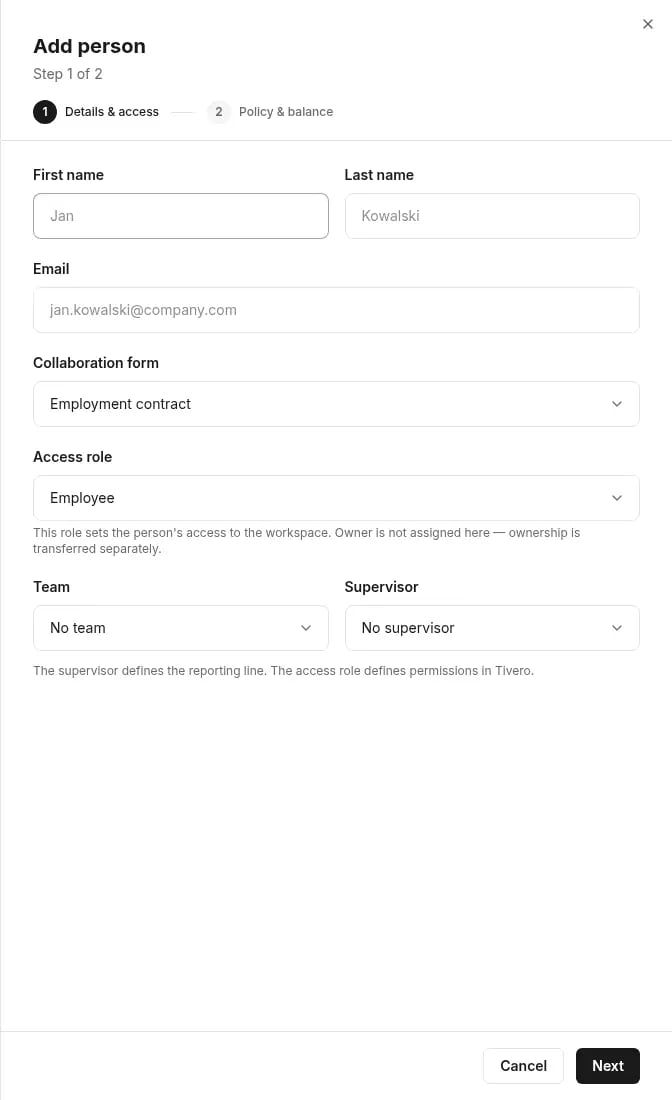
Enter the first name, last name and email address. Choose the **Collaboration form** (Employment contract, B2B collaboration, Mandate contract, Other collaboration form), **Team**, **Supervisor** and **Access role**.
 Choose the **Policy**. If the policy uses a balance, choose **Set balance now** and enter the opening balance, or **Set balance later**.
Click **Add person**. The person appears on the list with the **Imported** status.
The email address is the account key and can't be edited later. Check it before you save.
The **Supervisor** defines the reporting line and, by default, approves the person's requests. The **Access role** defines permissions in Tivero. The two are independent.
If you choose **Set balance later**, the person can't file balance-deducting requests until the opening balance is set. The **People** list shows a banner with the number of people who need an opening balance.
## Send the invitation
Click the person on the **People** list.
Click **Send invitation**. The status changes to **Invited**.
The person receives an invitation email. Once they accept it and sign in, the status changes to **Active** and they get the access role you chose.
## Seat cost
On a paid plan you pay for active people. If an invitation increases the number of paid seats, Tivero shows **This will increase the bill** with how much you pay and when. During the free trial you pay nothing. Only the Owner or an Administrator can approve the cost. Details: [Subscription and payments](/en/billing/subscription-and-payments).
## Person statuses
| Status | What it means |
| --------------- | ----------------------------------------------------------- |
| **Imported** | The profile exists; no invitation has been sent yet. |
| **Invited** | The invitation was sent; the person hasn't accepted it yet. |
| **Active** | The person has access to Tivero. |
| **Deactivated** | The person has lost access. Their data is kept. |
## Related articles
* [Import people from a file](/en/people/import-people)
* [Manage access](/en/people/manage-access)
* [Balances](/en/time-off/balances)
* [Invitations and access — troubleshooting](/en/troubleshooting/invitation-and-access)
Choose the **Policy**. If the policy uses a balance, choose **Set balance now** and enter the opening balance, or **Set balance later**.
Click **Add person**. The person appears on the list with the **Imported** status.
The email address is the account key and can't be edited later. Check it before you save.
The **Supervisor** defines the reporting line and, by default, approves the person's requests. The **Access role** defines permissions in Tivero. The two are independent.
If you choose **Set balance later**, the person can't file balance-deducting requests until the opening balance is set. The **People** list shows a banner with the number of people who need an opening balance.
## Send the invitation
Click the person on the **People** list.
Click **Send invitation**. The status changes to **Invited**.
The person receives an invitation email. Once they accept it and sign in, the status changes to **Active** and they get the access role you chose.
## Seat cost
On a paid plan you pay for active people. If an invitation increases the number of paid seats, Tivero shows **This will increase the bill** with how much you pay and when. During the free trial you pay nothing. Only the Owner or an Administrator can approve the cost. Details: [Subscription and payments](/en/billing/subscription-and-payments).
## Person statuses
| Status | What it means |
| --------------- | ----------------------------------------------------------- |
| **Imported** | The profile exists; no invitation has been sent yet. |
| **Invited** | The invitation was sent; the person hasn't accepted it yet. |
| **Active** | The person has access to Tivero. |
| **Deactivated** | The person has lost access. Their data is kept. |
## Related articles
* [Import people from a file](/en/people/import-people)
* [Manage access](/en/people/manage-access)
* [Balances](/en/time-off/balances)
* [Invitations and access — troubleshooting](/en/troubleshooting/invitation-and-access)