> ## Documentation Index
> Fetch the complete documentation index at: https://help.tivero.app/llms.txt
> Use this file to discover all available pages before exploring further.
# Manager guide
> How a manager decides on team requests, checks team availability and the team calendar, and hands approvals over while away.
**Who:** people with the Manager role, and anyone named as an approver. Detailed instructions are in the linked articles.
## What you do in Tivero
* Decide on requests from the people you approve for.
* Check team availability before you decide.
* Plan work using the team calendar.
* Submit your own requests — like every employee.
## What you see as a manager
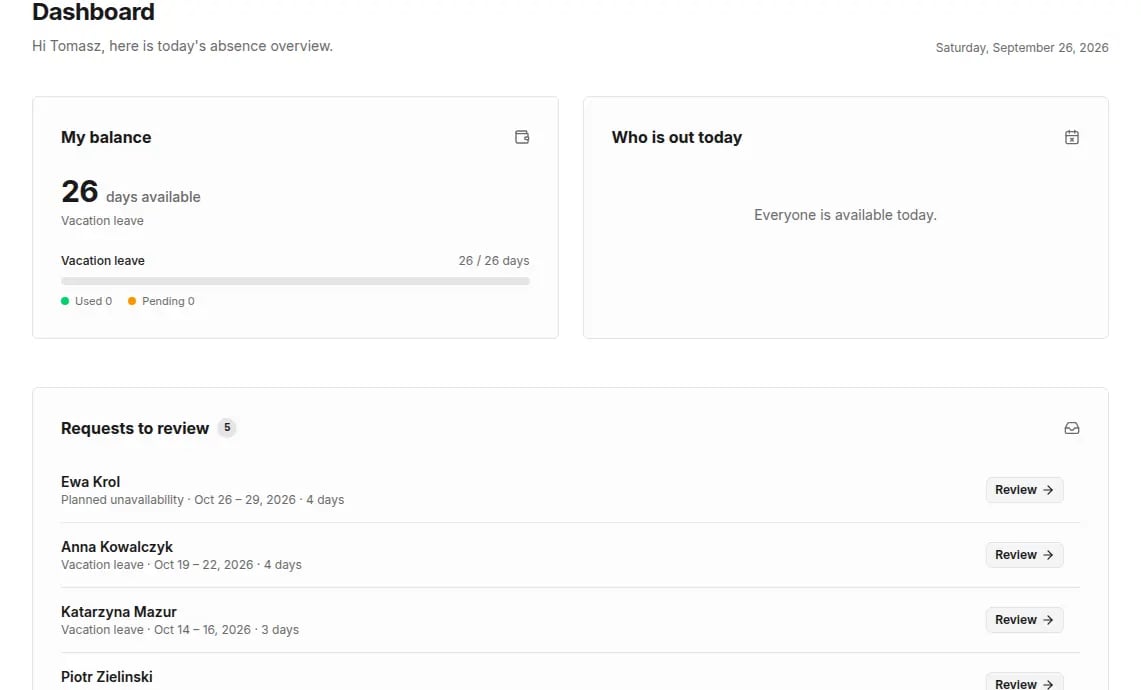
* **Dashboard** — the **Requests to review** and **Upcoming team absences** cards.
* **Requests** — the **Mine**, **Team** and **To review** tabs.
* **Calendar** — the **My team** view.
* **People**, **Teams**, **Reports** — your team only, read-only.
 ## Decide on a request
On the **Dashboard**, click **Review** next to a request, or open **Requests → To review**.
The **Decision context** section shows team availability for the period and whether your decision is final or the request still needs another approval.
## Decide on a request
On the **Dashboard**, click **Review** next to a request, or open **Requests → To review**.
The **Decision context** section shows team availability for the period and whether your decision is final or the request still needs another approval.
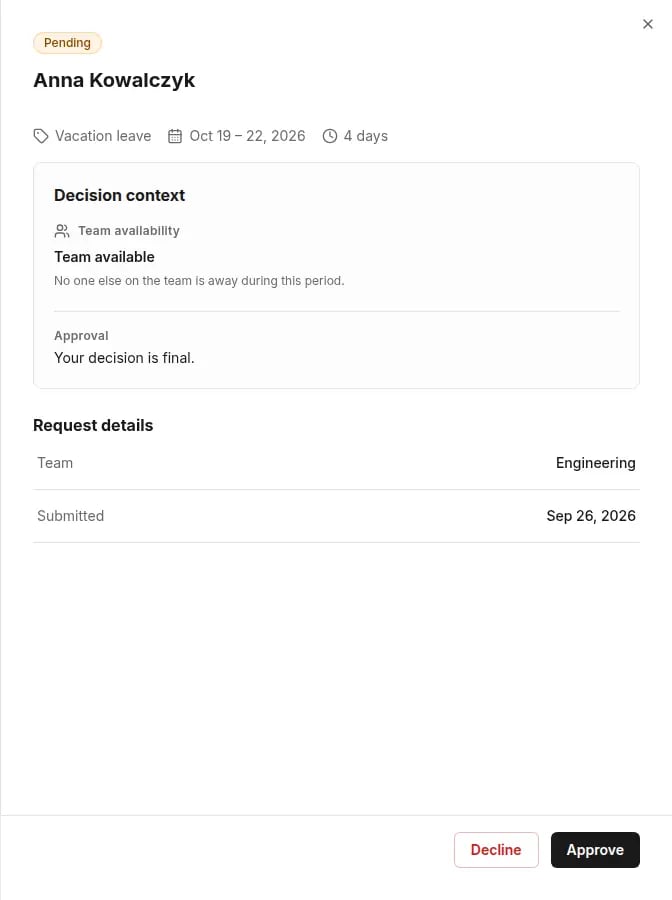 Click **Approve** or **Decline**. When you decline, you can add a comment — the requester will see it.
Details: [Approve requests](/en/time-off/approve-requests).
## Where to find common tasks
| You want to… | Go to |
| ------------------------------------- | -------------------------------------------------------------------------------------------- |
| see who will be away | **Calendar** → **My team** · [Absence calendar](/en/calendars/absence-calendar) |
| check a team member's balance | **People** (read-only) · [Balances](/en/time-off/balances) |
| see team statistics | **Reports** (scope: your team) · [Reports](/en/reports/reports) |
| decide on requests in Microsoft Teams | [Microsoft Teams](/en/microsoft-365/teams) — if your organization has turned it on |
| hand approvals over while you're away | **Settings → Approval delegation** · [Approval delegation](/en/time-off/approval-delegation) |
The email notification about a new request links to the **To review** list in Tivero. You make the decision itself in Tivero or in Microsoft Teams.
## Common problems
* [Approval issues](/en/troubleshooting/approval-issues) — I don't see a request, I can't approve.
* [I can't submit a request](/en/troubleshooting/cannot-submit-request)
## Related articles
* [How approval works](/en/time-off/approval-process)
* [Roles and permissions](/en/roles/roles-and-permissions)
Click **Approve** or **Decline**. When you decline, you can add a comment — the requester will see it.
Details: [Approve requests](/en/time-off/approve-requests).
## Where to find common tasks
| You want to… | Go to |
| ------------------------------------- | -------------------------------------------------------------------------------------------- |
| see who will be away | **Calendar** → **My team** · [Absence calendar](/en/calendars/absence-calendar) |
| check a team member's balance | **People** (read-only) · [Balances](/en/time-off/balances) |
| see team statistics | **Reports** (scope: your team) · [Reports](/en/reports/reports) |
| decide on requests in Microsoft Teams | [Microsoft Teams](/en/microsoft-365/teams) — if your organization has turned it on |
| hand approvals over while you're away | **Settings → Approval delegation** · [Approval delegation](/en/time-off/approval-delegation) |
The email notification about a new request links to the **To review** list in Tivero. You make the decision itself in Tivero or in Microsoft Teams.
## Common problems
* [Approval issues](/en/troubleshooting/approval-issues) — I don't see a request, I can't approve.
* [I can't submit a request](/en/troubleshooting/cannot-submit-request)
## Related articles
* [How approval works](/en/time-off/approval-process)
* [Roles and permissions](/en/roles/roles-and-permissions)