> ## Documentation Index
> Fetch the complete documentation index at: https://help.tivero.app/llms.txt
> Use this file to discover all available pages before exploring further.
# Absence policies
> Create a policy, set the allowance and approval, then assign it to people.
A policy states which absences a group of people is entitled to, and how much of each. Each person has one policy at a time.
**Who:** HR, Administrator, Owner.
**Where:** the **Organization → Absence policies** menu.
## Create a policy
Click **Add policy**.
Under **Start from a template**, choose **Employment contract — 20 days**, **Employment contract — 26 days**, **B2B — planned unavailability** or **Build your own**. A template only fills in the form — you can change anything.
Enter the **Policy name** and select the absence types the policy covers. You need at least one type.
Choose how the allowance is set (described below) and enter the number of days or hours for each pool.
Click **Create policy**.
## Allowance
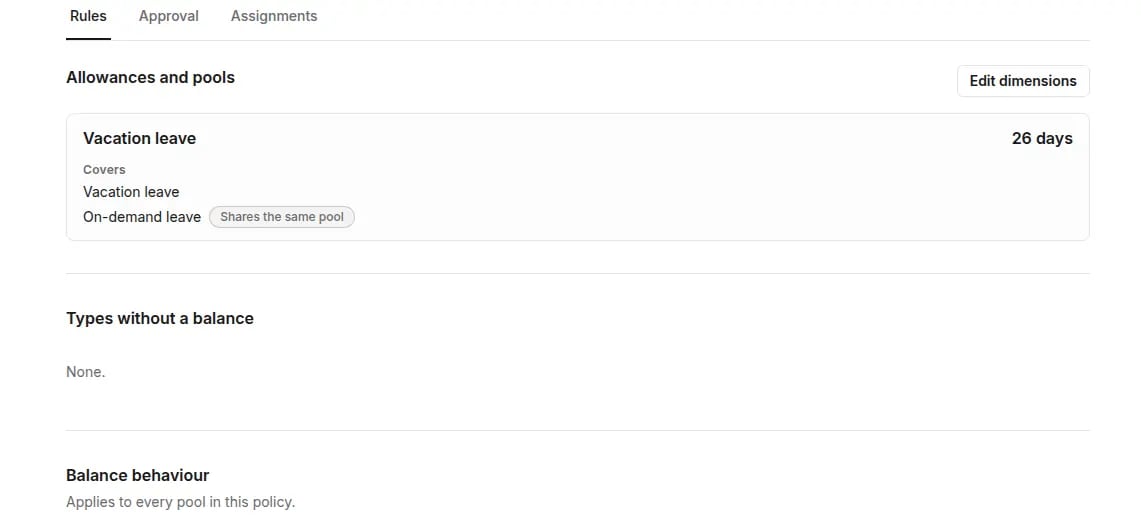 | Option | When to use it |
| --------------------- | ------------------------------------------------------------------------------------------ |
| **Same for everyone** | Everyone the policy covers has the same annual allowance, for example 26 days. |
| **Set individually** | You set each person's allowance on their profile, under **Individual settings**. |
| **No balance pool** | The policy covers only absences that don't draw on a pool (for example B2B with no limit). |
**Balance may go below zero** lets a request be approved even when the balance isn't enough. It applies to every pool in the policy.
The **Suggested for** field (collaboration form) is only a hint when assigning. It doesn't limit who you can assign the policy to.
The "Employment contract — 20 days" and "Employment contract — 26 days" templates follow Polish practice. They are not legal advice. Check the allowance that applies in your organization.
## Approval in the policy
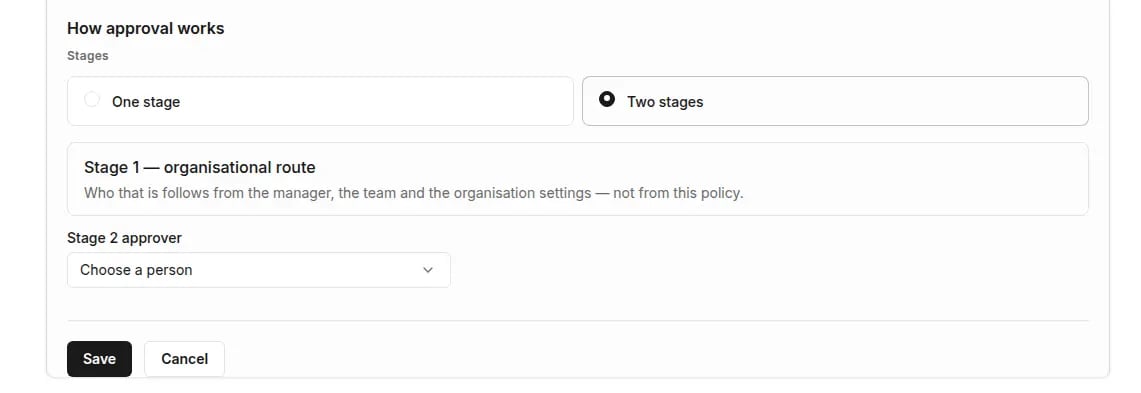
Open the policy and go to the **Approval** section. For each absence type you set:
* **Requires approval** or **Does not require approval**,
* **One stage** or **Two stages**.
**Stage 1 — organisational route**: the approver follows from the manager, the team and the organization settings, not from the policy. At **Stage 2** you name a specific approver. See [How approval works](/en/time-off/approval-process).
| Option | When to use it |
| --------------------- | ------------------------------------------------------------------------------------------ |
| **Same for everyone** | Everyone the policy covers has the same annual allowance, for example 26 days. |
| **Set individually** | You set each person's allowance on their profile, under **Individual settings**. |
| **No balance pool** | The policy covers only absences that don't draw on a pool (for example B2B with no limit). |
**Balance may go below zero** lets a request be approved even when the balance isn't enough. It applies to every pool in the policy.
The **Suggested for** field (collaboration form) is only a hint when assigning. It doesn't limit who you can assign the policy to.
The "Employment contract — 20 days" and "Employment contract — 26 days" templates follow Polish practice. They are not legal advice. Check the allowance that applies in your organization.
## Approval in the policy
Open the policy and go to the **Approval** section. For each absence type you set:
* **Requires approval** or **Does not require approval**,
* **One stage** or **Two stages**.
**Stage 1 — organisational route**: the approver follows from the manager, the team and the organization settings, not from the policy. At **Stage 2** you name a specific approver. See [How approval works](/en/time-off/approval-process).
 ## Assign the policy to people
Open the policy and go to the **Assignments** section.
Click **Assign people** and select people. You can assign a policy to at most 1000 people at a time.
The preview shows who will receive the policy and whose current policy will change. Click **Assign**.
**Result:** the change takes effect today. If a person had a different policy, their current assignment ends before the new one begins. History is left unchanged.
You can also choose the policy when you [add a person](/en/people/add-and-invite-people).
## Incomplete policy
A policy marked **Incomplete configuration** covers no absence type, or its pool states no allowance. People it covers can't file the corresponding requests until you complete it.
## Archive or delete a policy
In the **More actions** menu, choose:
* **Archive** — the policy disappears from the active list; history is kept. You can restore it later. Move the people it covers to another policy first.
* **Delete policy** — only possible if the policy was never used. Otherwise, archive it.
## Related articles
* [Key concepts](/en/time-off/key-concepts)
* [Absence types](/en/time-off/absence-types)
* [Balances](/en/time-off/balances)
## Assign the policy to people
Open the policy and go to the **Assignments** section.
Click **Assign people** and select people. You can assign a policy to at most 1000 people at a time.
The preview shows who will receive the policy and whose current policy will change. Click **Assign**.
**Result:** the change takes effect today. If a person had a different policy, their current assignment ends before the new one begins. History is left unchanged.
You can also choose the policy when you [add a person](/en/people/add-and-invite-people).
## Incomplete policy
A policy marked **Incomplete configuration** covers no absence type, or its pool states no allowance. People it covers can't file the corresponding requests until you complete it.
## Archive or delete a policy
In the **More actions** menu, choose:
* **Archive** — the policy disappears from the active list; history is kept. You can restore it later. Move the people it covers to another policy first.
* **Delete policy** — only possible if the policy was never used. Otherwise, archive it.
## Related articles
* [Key concepts](/en/time-off/key-concepts)
* [Absence types](/en/time-off/absence-types)
* [Balances](/en/time-off/balances)