> ## Documentation Index
> Fetch the complete documentation index at: https://help.tivero.app/llms.txt
> Use this file to discover all available pages before exploring further.
# How approval works
> Who approves requests, what happens when a person has no supervisor, and how to test the approval route.
**Who configures it:** HR, Administrator, Owner.
**Where:** **Settings → Approval processes**, teams, the person page and absence policies.
## Who approves a request
Tivero picks the approver in this order:
If a specific approver is named on the person page, under **Approval routing**, the request goes to them.
If the person's team has a setting under **Who approves this team's requests** (the team manager or a specific person), the request goes to them.
Otherwise, the request goes to the person's **Direct manager**.
If the chosen approver has an active [delegation](/en/time-off/approval-delegation), the request goes to their delegate.
## When the direct manager can't be used
A person may have no supervisor, or their supervisor may be inactive. In **Settings → Approval processes**, choose what happens then:
| Option | What happens |
| ----------------------------- | --------------------------------------------------------- |
| **Send to a specific person** | The request goes to the person you choose. |
| **No approval required** | The request is registered without approval. |
| **Block the request** | The person can't file a request until an approver is set. |
The **Backup approver** is used when a primary approver can't be resolved, for example when the manager is inactive.
## Nobody approves their own requests
Self-approval is blocked. If the default approver would be the same person, a backup approver is needed.
## Check the configuration
The **Approval processes** tab shows how many people have a valid approval path and how many need configuration. Click **Show problems** to see who has a problem and why.
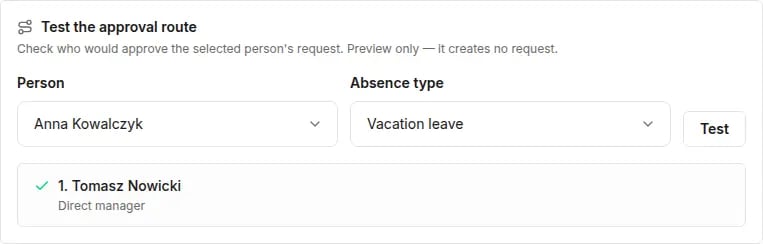
**Test the approval route** checks who would approve a selected person's request for a selected absence type. Choose the **Person** and the **Absence type**, then click **Test**. It's a preview only — it creates no request.
 ## Two-stage approval
In an [absence policy](/en/time-off/absence-policies), you can set **Two stages** for selected types. Stage 1 is the route described above. At stage 2, a specific person named in the policy approves. The request is approved only after both stages.
## When approval isn't required
A request is approved automatically when the absence type or the policy doesn't require approval (for example "Medical leave (L4)" by default).
## Notifications
The approver gets an email about a new request, and the requester gets an email about the decision. You set this in **Settings → Notifications**.
## Related articles
* [Approve requests](/en/time-off/approve-requests)
* [Teams and supervisors](/en/people/teams-and-supervisors)
* [Approval issues](/en/troubleshooting/approval-issues)
## Two-stage approval
In an [absence policy](/en/time-off/absence-policies), you can set **Two stages** for selected types. Stage 1 is the route described above. At stage 2, a specific person named in the policy approves. The request is approved only after both stages.
## When approval isn't required
A request is approved automatically when the absence type or the policy doesn't require approval (for example "Medical leave (L4)" by default).
## Notifications
The approver gets an email about a new request, and the requester gets an email about the decision. You set this in **Settings → Notifications**.
## Related articles
* [Approve requests](/en/time-off/approve-requests)
* [Teams and supervisors](/en/people/teams-and-supervisors)
* [Approval issues](/en/troubleshooting/approval-issues)