> ## Documentation Index
> Fetch the complete documentation index at: https://help.tivero.app/llms.txt
> Use this file to discover all available pages before exploring further.
# Approve requests
> Review a request, check the decision context, approve or decline, and reassign the approval when needed.
**Who:** the approver assigned to the request's current stage, and also Administrators and the Owner.
## Find requests to review
* **Dashboard** → the **Requests to review** card → **Review**.
* **Requests** → the **To review** tab.
* The link in the email notification about a new request.
* Microsoft Teams, if your organization has [turned on Teams notifications](/en/microsoft-365/teams).
## Decide on a request
Click the request row to open the details.
You see **Team availability** for the period (for example "4 of 6 people available") and whether your decision is final.
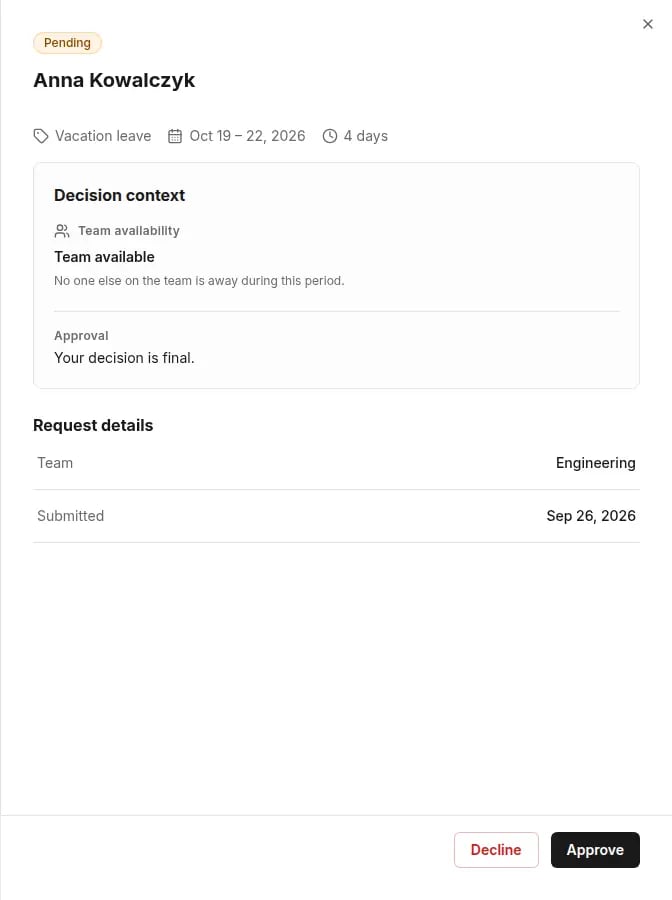 Click **Approve** or **Decline**. When you decline, you can add a comment — the requester will see it.
**Result:** the requester gets an email notification. If the request has two stages, after your approval it goes to the stage 2 approver.
Team availability is context, not a precondition. If Tivero can't check it, you can still decide.
## When a request can't be approved
If the person's available balance isn't enough and the policy doesn't allow a negative balance, Tivero shows **This request cannot be approved** and the shortfall (**Short by …**). You can then decline the request or ask HR to adjust the balance.
## Reassign the approval
**Who:** HR, Administrator, Owner.
Open the pending request.
Click **Reassign to someone else**, choose a person in **Reassign to** and enter the **Reason for reassignment**.
Click **Reassign**. The current approver loses the task.
Click **Show reassignment history** to see earlier reassignments.
## Rules
* Nobody approves their own request.
* A decision is final for its stage. An approved request can be cancelled later — see [Cancel a request](/en/time-off/cancel-request).
## Related articles
* [How approval works](/en/time-off/approval-process)
* [Approval delegation](/en/time-off/approval-delegation)
* [Approval issues](/en/troubleshooting/approval-issues)
Click **Approve** or **Decline**. When you decline, you can add a comment — the requester will see it.
**Result:** the requester gets an email notification. If the request has two stages, after your approval it goes to the stage 2 approver.
Team availability is context, not a precondition. If Tivero can't check it, you can still decide.
## When a request can't be approved
If the person's available balance isn't enough and the policy doesn't allow a negative balance, Tivero shows **This request cannot be approved** and the shortfall (**Short by …**). You can then decline the request or ask HR to adjust the balance.
## Reassign the approval
**Who:** HR, Administrator, Owner.
Open the pending request.
Click **Reassign to someone else**, choose a person in **Reassign to** and enter the **Reason for reassignment**.
Click **Reassign**. The current approver loses the task.
Click **Show reassignment history** to see earlier reassignments.
## Rules
* Nobody approves their own request.
* A decision is final for its stage. An approved request can be cancelled later — see [Cancel a request](/en/time-off/cancel-request).
## Related articles
* [How approval works](/en/time-off/approval-process)
* [Approval delegation](/en/time-off/approval-delegation)
* [Approval issues](/en/troubleshooting/approval-issues)