> ## Documentation Index
> Fetch the complete documentation index at: https://help.tivero.app/llms.txt
> Use this file to discover all available pages before exploring further.
# Balances
> How balances work, and how to set an opening balance, make an adjustment, carry days over and check the history.
A balance is the number of days or hours a person can still use in a given year from their policy's pool.
## Where you see the balance
* **Employees:** on the **Dashboard**, in the **My balance** card — how much is **available**, **Used** and **Pending**. The balance before and after approval also shows in the new request summary.
* **HR and above:** on the person page, in the **Balance** section.
* **Managers:** balances of people in their team, read-only.
## What changes a balance
| Event | Effect |
| ----------------------------------- | ----------------------------------------------------------- |
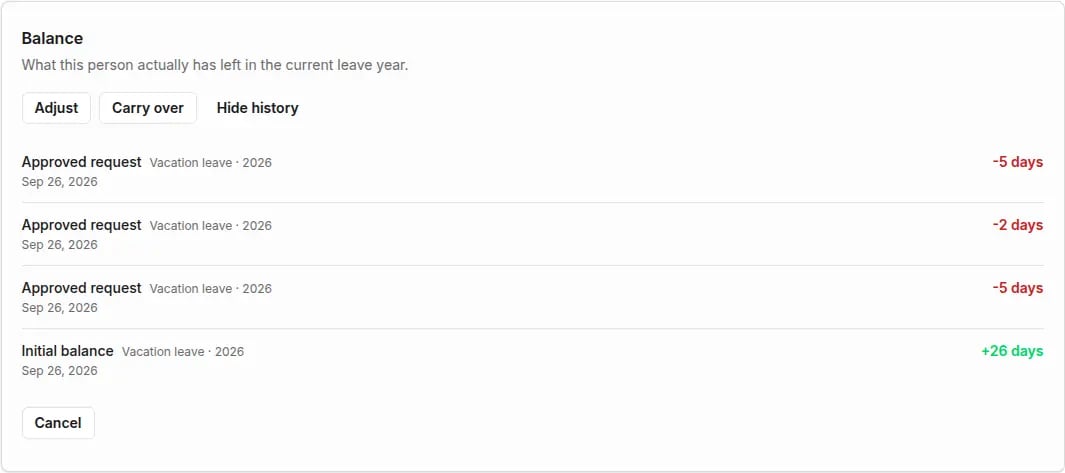
| **Initial balance** | Sets the starting point for the leave year. |
| **Approved request** | Reduces the balance by the request's days or hours. |
| **Cancelled request** | Returns the days of an approved request that was cancelled. |
| **Manual adjustment** | Increases or decreases the balance by the value you enter. |
| **Carried over from previous year** | Adds days carried over from the previous year. |
A pending request doesn't reduce the balance — it shows as **Pending** until someone approves it.
## Manage a person's balance
**Who:** HR, Administrator, Owner.
Open the person on the **People** list, click **Open full profile**, go to the **Absences** area and, in the **Balance** section, click **Manage balance**. **Set opening balance** appears when no opening balance is set yet; **Adjust** and **Carry over** appear once it is.
Click **Set opening balance**. Choose the pool (absence type) and the leave year, enter the amount and a reason (for example "balance from the previous system"), then click **Save**.
Click **Adjust**. Enter a signed value: positive increases the balance, negative decreases it. Add a reason and click **Save**.
Click **Carry over**. Choose the target year, enter the number of days and a reason, then click **Save**.
Click **Show history** to see every balance entry with its date, source and reason.
 If the person's policy uses a **Set individually** allowance, set the allowance under **Individual settings** first. Only then can you configure the balance.
## People without a balance
If the policy requires a balance and no opening balance has been set, the person can't file a balance-deducting request. On the **People** list, use the **Needs an opening balance** filter to find these people.
## Related articles
* [Key concepts](/en/time-off/key-concepts)
* [Absence policies](/en/time-off/absence-policies)
* [Cancel a request](/en/time-off/cancel-request)
* [I can't submit a request](/en/troubleshooting/cannot-submit-request)
If the person's policy uses a **Set individually** allowance, set the allowance under **Individual settings** first. Only then can you configure the balance.
## People without a balance
If the policy requires a balance and no opening balance has been set, the person can't file a balance-deducting request. On the **People** list, use the **Needs an opening balance** filter to find these people.
## Related articles
* [Key concepts](/en/time-off/key-concepts)
* [Absence policies](/en/time-off/absence-policies)
* [Cancel a request](/en/time-off/cancel-request)
* [I can't submit a request](/en/troubleshooting/cannot-submit-request)