> ## Documentation Index
> Fetch the complete documentation index at: https://help.tivero.app/llms.txt
> Use this file to discover all available pages before exploring further.
# Cancel a request
> Cancel a pending or approved request and see what happens to the balance.
**Who:** the person who submitted the request, plus HR, Administrators and the Owner.
**What you can cancel:** requests with the **Pending** or **Approved** status. You can't cancel a declined or already cancelled request.
## Cancel a request
Go to **Requests** and open the request (your own are on the **Mine** tab).
Click **Cancel request**.
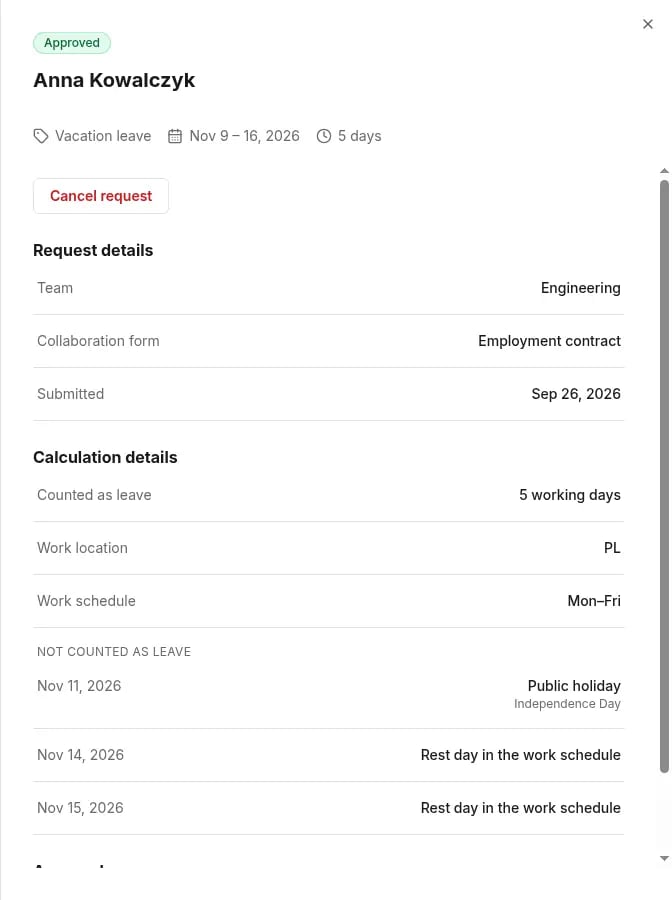 Confirm in the **Cancel this request?** dialog.
You can't undo a cancellation from this screen. If the absence is still needed, submit a new request.
## What happens after cancelling
| Request before cancelling | Result |
| ------------------------- | ----------------------------------------------------------------------------------------------------------------------- |
| **Pending** | The request leaves the review list. The approver no longer needs to decide. The balance doesn't change. |
| **Approved** | The days go back to the balance (if the type deducts from it). The balance history shows a **Cancelled request** entry. |
If your organization syncs calendars with Outlook, the event for the approved request is removed from the calendar. See [Outlook calendar](/en/microsoft-365/outlook-calendar).
## Related articles
* [Request an absence](/en/time-off/request-absence)
* [Balances](/en/time-off/balances)
Confirm in the **Cancel this request?** dialog.
You can't undo a cancellation from this screen. If the absence is still needed, submit a new request.
## What happens after cancelling
| Request before cancelling | Result |
| ------------------------- | ----------------------------------------------------------------------------------------------------------------------- |
| **Pending** | The request leaves the review list. The approver no longer needs to decide. The balance doesn't change. |
| **Approved** | The days go back to the balance (if the type deducts from it). The balance history shows a **Cancelled request** entry. |
If your organization syncs calendars with Outlook, the event for the approved request is removed from the calendar. See [Outlook calendar](/en/microsoft-365/outlook-calendar).
## Related articles
* [Request an absence](/en/time-off/request-absence)
* [Balances](/en/time-off/balances)