

Prepare the file
Each row is one person. Three columns are required: first name, last name and email address. The rest are optional.Import people
1
Open the import
Go to People and click Import.
2
File
Click Choose a file… and select a CSV or XLSX file.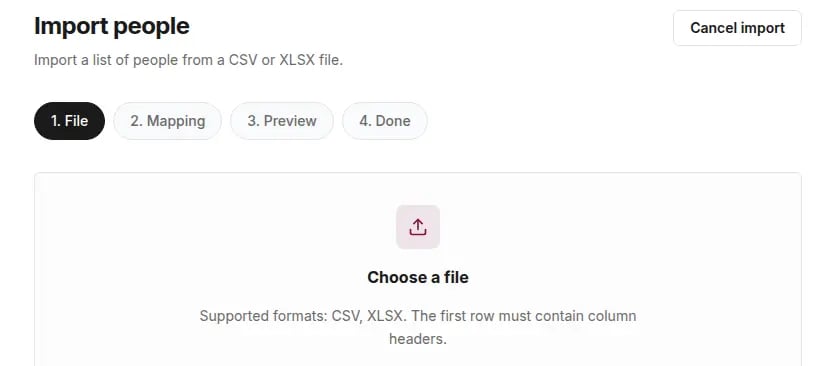
3
Mapping
Match the file’s columns to Tivero fields. Set columns you don’t want to import to — skip —. Starred fields are required.
4
Preview
Check how many rows are valid and invalid. Rows with errors are skipped during import.
5
Done
You see how many people were created and how many were skipped.
After the import
Imported people have the Imported status. Tivero doesn’t send them invitations automatically. When they’re ready, open the person on the People list and click Send invitation. Also check that people have a policy and a supervisor. Banners on the People list show who is missing a balance or an approver.If something doesn’t work
- “Could not read the file” — check that the file is CSV or XLSX and that the first row contains headers.
- “The file is too large” — split the file into smaller parts.
- Rows skipped in the preview — fix them in the file and import just those rows again.