

What you do in Tivero
- Decide on requests from the people you approve for.
- Check team availability before you decide.
- Plan work using the team calendar.
- Submit your own requests — like every employee.
What you see as a manager
- Dashboard — the Requests to review and Upcoming team absences cards.
- Requests — the Mine, Team and To review tabs.
- Calendar — the My team view.
- People, Teams, Reports — your team only, read-only.
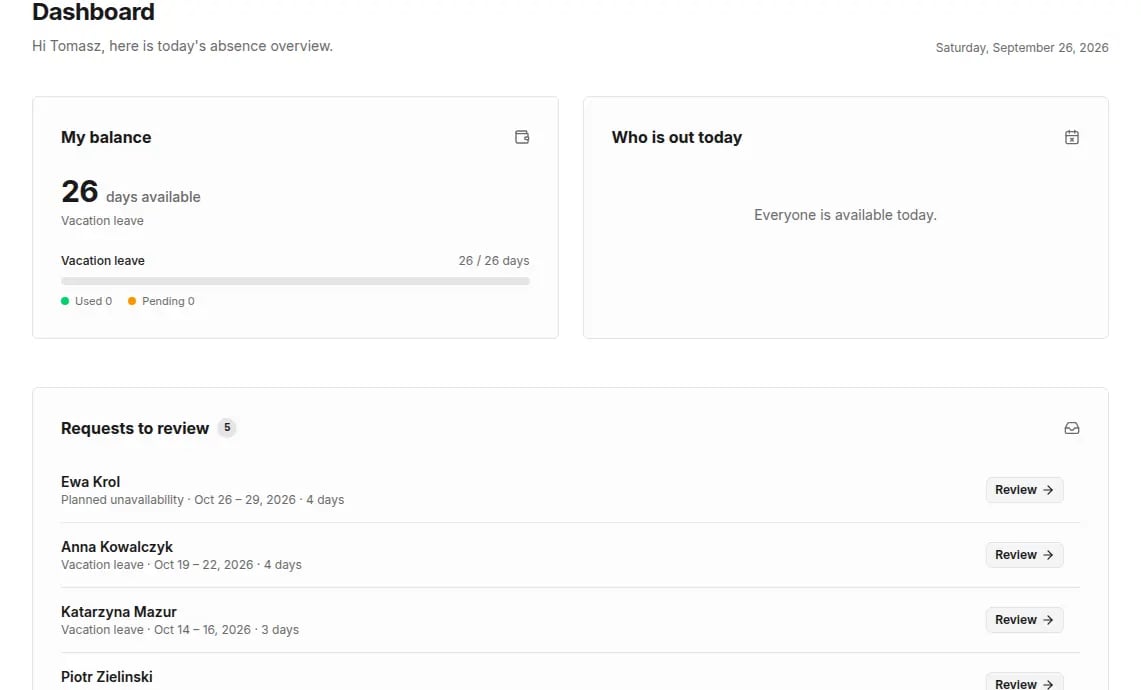
Decide on a request
1
Open the request
On the Dashboard, click Review next to a request, or open Requests → To review.
2
Check the decision context
The Decision context section shows team availability for the period and whether your decision is final or the request still needs another approval.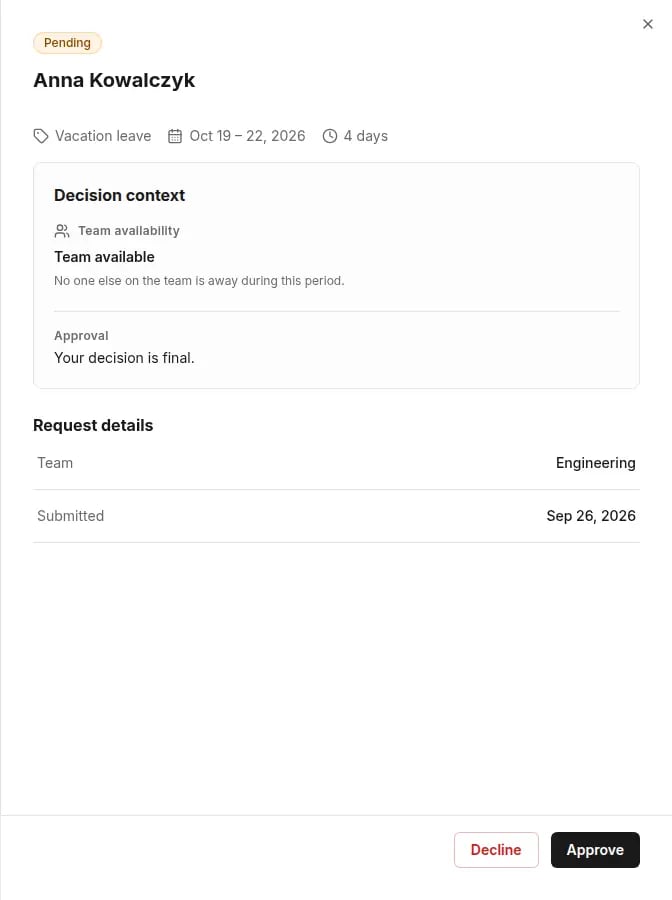
3
Decide
Click Approve or Decline. When you decline, you can add a comment — the requester will see it.
Where to find common tasks
The email notification about a new request links to the To review list in Tivero. You make the decision itself in Tivero or in Microsoft Teams.
Common problems
- Approval issues — I don’t see a request, I can’t approve.
- I can’t submit a request