

Find requests to review
- Dashboard → the Requests to review card → Review.
- Requests → the To review tab.
- The link in the email notification about a new request.
- Microsoft Teams, if your organization has turned on Teams notifications.
Decide on a request
1
Open the request
Click the request row to open the details.
2
Check the Decision context
You see Team availability for the period (for example “4 of 6 people available”) and whether your decision is final.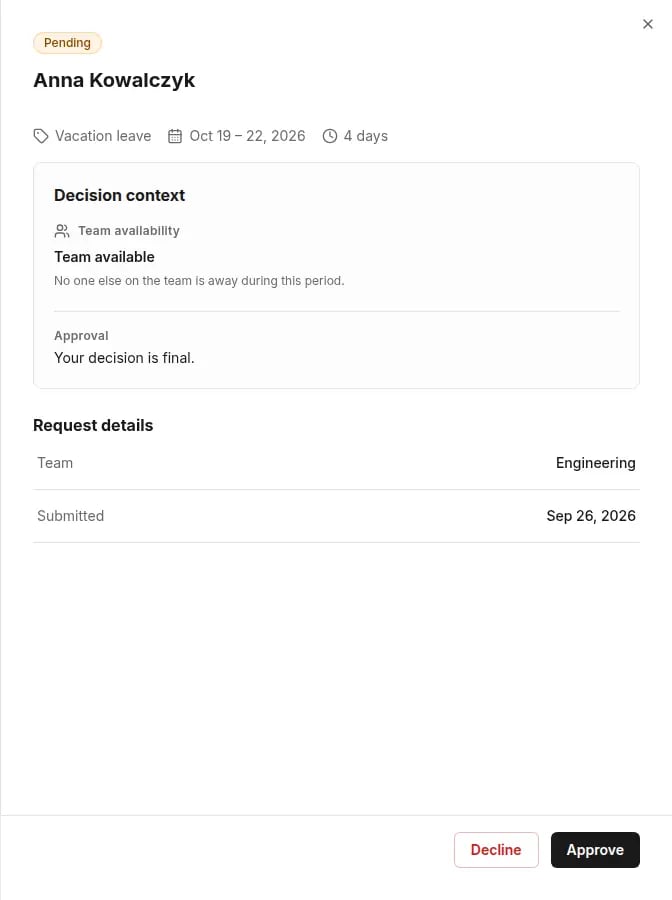
3
Approve or decline
Click Approve or Decline. When you decline, you can add a comment — the requester will see it.
Team availability is context, not a precondition. If Tivero can’t check it, you can still decide.
When a request can’t be approved
If the person’s available balance isn’t enough and the policy doesn’t allow a negative balance, Tivero shows This request cannot be approved and the shortfall (Short by …). You can then decline the request or ask HR to adjust the balance.Reassign the approval
Who: HR, Administrator, Owner.1
Open the request
Open the pending request.
2
Reassign
Click Reassign to someone else, choose a person in Reassign to and enter the Reason for reassignment.
3
Confirm
Click Reassign. The current approver loses the task.
Rules
- Nobody approves their own request.
- A decision is final for its stage. An approved request can be cancelled later — see Cancel a request.